How do you keep leading zeros and long IDs in a CSV import?
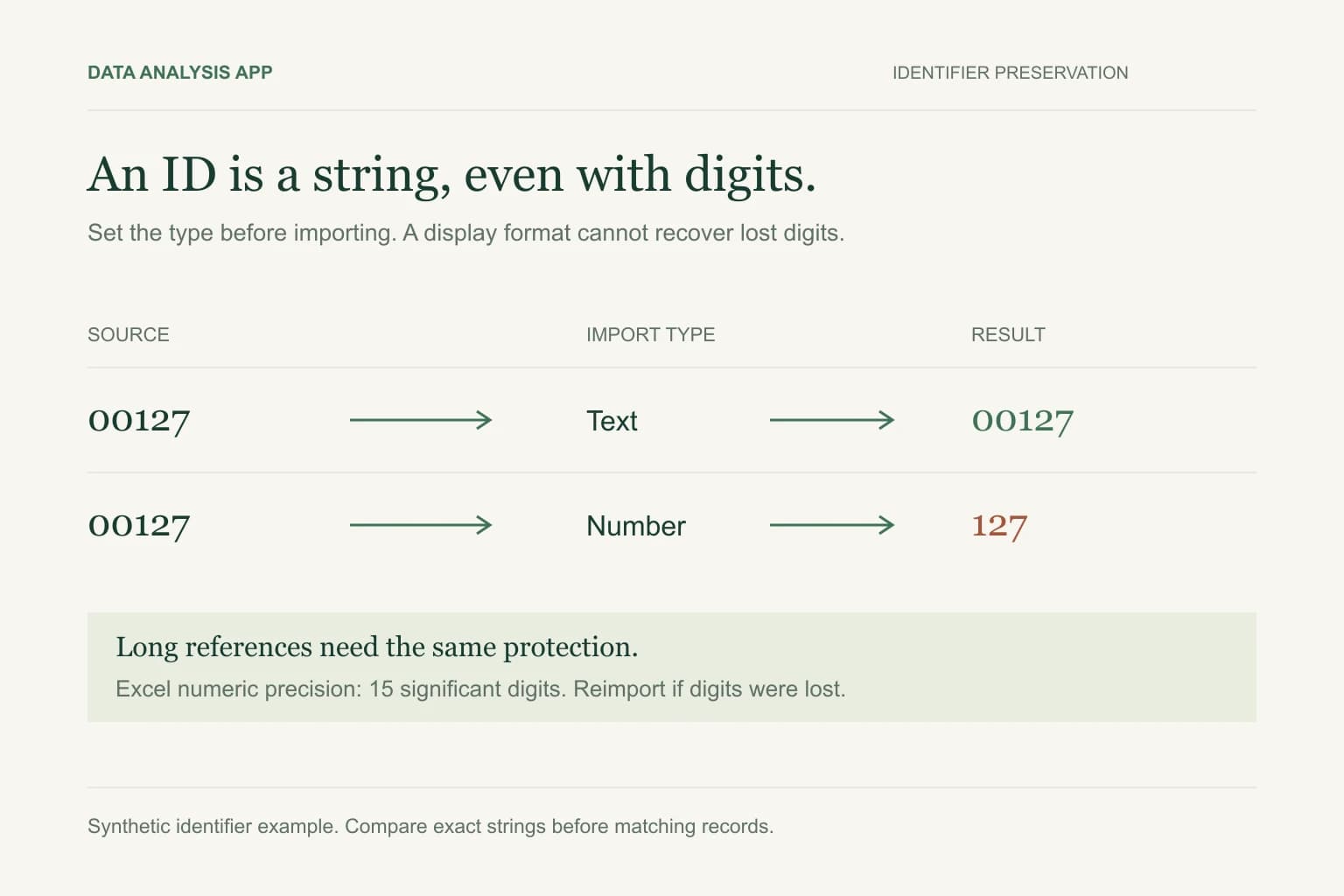
Import identifier columns as text before Excel converts them. Leading zeros and digits beyond Excel’s numeric precision can be lost when an identifier becomes a number. Changing the display format afterward cannot restore unknown digits. Reimport the original file, then compare identifier strings and unmatched keys before analysis.
Key numbers
- 00127
- an identifier, not a quantity
- 15 digits
- Excel numeric precision limit
- 0 lost keys
- the import acceptance target
Key takeaways
- Assign text types before loading identifiers.
- A number format changes display, not lost source digits.
- Validate complete strings and join coverage, not just totals.
An account number can contain only digits and still be text. Adding two account numbers has no business meaning. Removing a leading zero changes the identifier, even if a spreadsheet insists the value is numerically equivalent.
This distinction matters before analysis, particularly when a sales export must match a customer table. A report can reconcile its revenue total while quietly leaving many customer records unmatched.
Section 01
Decide which columns are identifiers
Postal codes, product codes, tracking references, account numbers, and long transaction IDs usually need exact string preservation. Quantities, prices, and measured durations usually need numeric types. Make the choice from the column's meaning rather than the appearance of its first few rows.
Create a simple schema note: customer_id is text, order_date is a date under a named convention, and net_amount is a decimal in a named currency. A column containing 00127 and 127 may represent two different accounts. Do not collapse them without evidence from the source system.
Section 02
Set the type before loading
In Excel, import through Data and Text/CSV, enter the transformation step if necessary, and explicitly set identifier columns to Text before loading. Inspect automatically generated type-conversion steps: a later Text step cannot recover digits a previous Number step already discarded.
Recent Excel versions expose controls for some automatic data conversions. Availability depends on the version and build, so a documented Text import remains a useful repeatable method. Formatting an empty destination column as text may help manual entry, but double-clicking a CSV can bypass the import contract you intended.
Section 03
Understand which damage can be repaired
Suppose a known five-character postal code 00127 becomes 127. Padding to five characters can restore the displayed code only if the authoritative schema guarantees that length. The same repair would be wrong for a variable-length customer ID where 127 and 00127 are distinct.
Excel numeric precision is limited to 15 significant digits. Once a longer reference has been converted and rounded, adding zeros or switching to Text does not recover the original suffix. Scientific notation may be only a display choice, but the full stored value must be checked. Reimport an untouched source to distinguish display from irreversible conversion.
Section 04
Test exact strings, not visual resemblance
Use a synthetic sample with 00127, 127, a reference longer than 15 digits, and a code containing an E. Compare the imported values character for character against the source. Include blanks and intentionally repeated keys so validation does not assume every row is unique.
In Excel, EXACT can compare two text strings, but inspect the values before treating any mismatch as corruption. Leading or trailing spaces may be source errors, meaningful padding, or import artifacts. Keep the original column and place any normalized comparison key in a separate field.
Section 05
Check matching coverage before reporting
Imagine 100 orders totaling $8,000. Ten orders have damaged customer references and fail to match the customer table. A left join still returns $8,000, so a revenue-total check passes. Regional revenue is nevertheless incomplete because those ten orders have no reliable region.
- Reconcile row counts and amounts before and after the match.
- Count unmatched orders and the amount attached to them.
- Confirm the lookup table has one row per intended customer key.
- Keep unmatched records visible instead of assigning them to a guessed customer.
The spreadsheet merging guide explains how duplicate lookup keys can multiply rows. Preserving identifiers prevents one class of failure; it does not prove the relationship between two tables is correct.
Section 06
Preserve the contract when exporting again
CSV carries characters but no durable column-type declarations. A recipient can reopen your carefully prepared file and repeat the same conversion mistake. Send the import instructions with the CSV, or share a workbook that preserves text-typed cells when the recipient's workflow allows it.
For a Data Analysis App project, review identifier columns and matching limitations before interpreting customer-level findings. Start with a copy of the export, retain the untouched original, and treat unexplained missing keys as a blocking data issue rather than a small formatting inconvenience.
See it on a real project
Contractor spend rose $412,000 while headcount spend fell $448,000, leaving only a $4,000 net change.
Keep reading
Evidence
Sources
- Microsoft (2026). Microsoft: leading zeros and large numbers.
- Microsoft (2026). Microsoft: automatic conversion settings.
- Data Analysis App team (2026). Related method: automatic conversion failures.